Agent Guide: How to add a new CMDB record
Agent Guide: How to add a new CMDB record
Overview
- The Configuration Management Database (CMDB) in Wavity ITSM stores records of your organization’s assets, such as workstations, peripherals, network devices, servers and business services. This guide shows agents how to create a new CMDB record manually.
- Note: These steps describe the standard workflow. Your organization may have customized the fields, options or layout, but the core process stays the same.
Create a CMDB record
- Sign in to Wavity ITSM. Log in with your agent credentials. You will land on your default landing page, such as the Unresolved Incident(s) list.
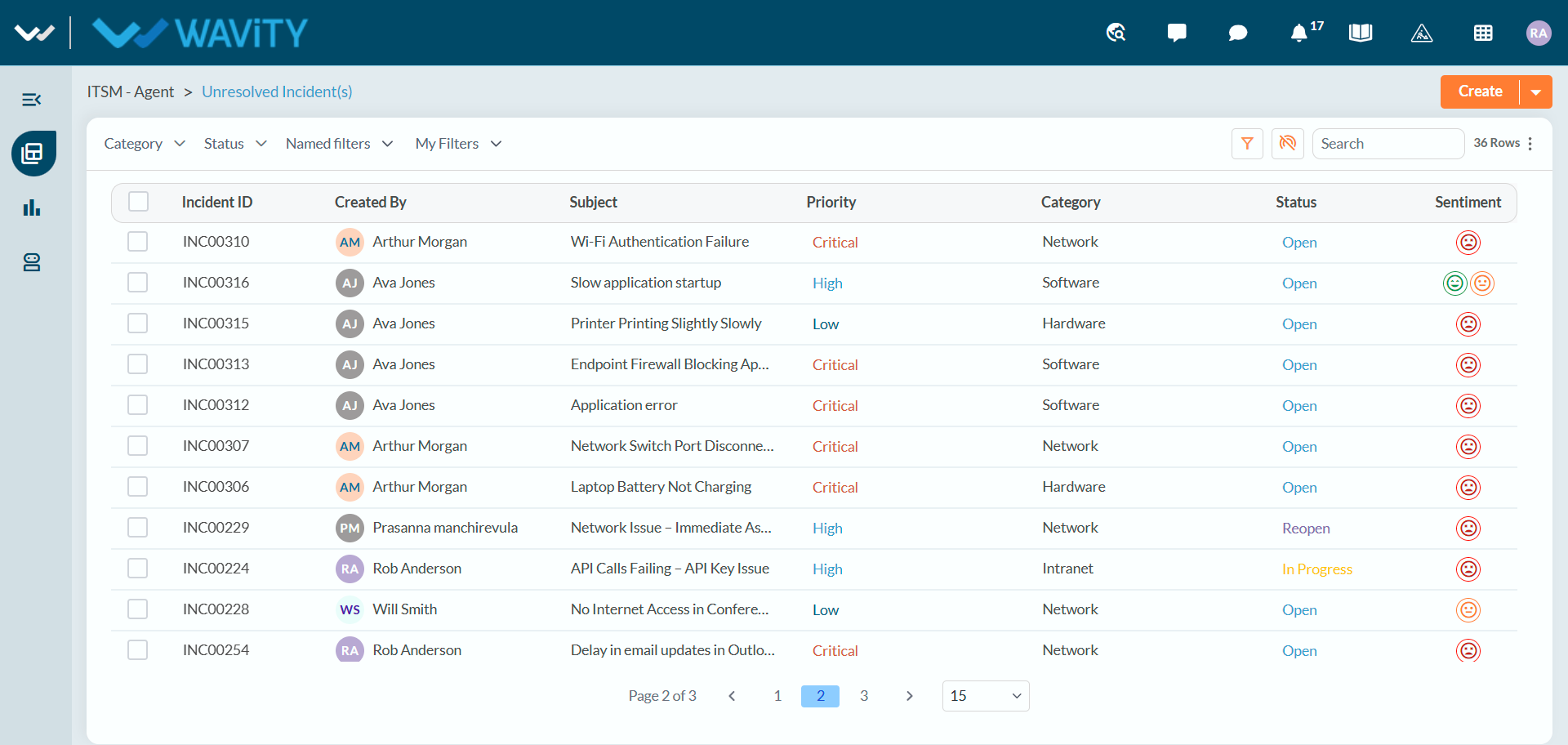
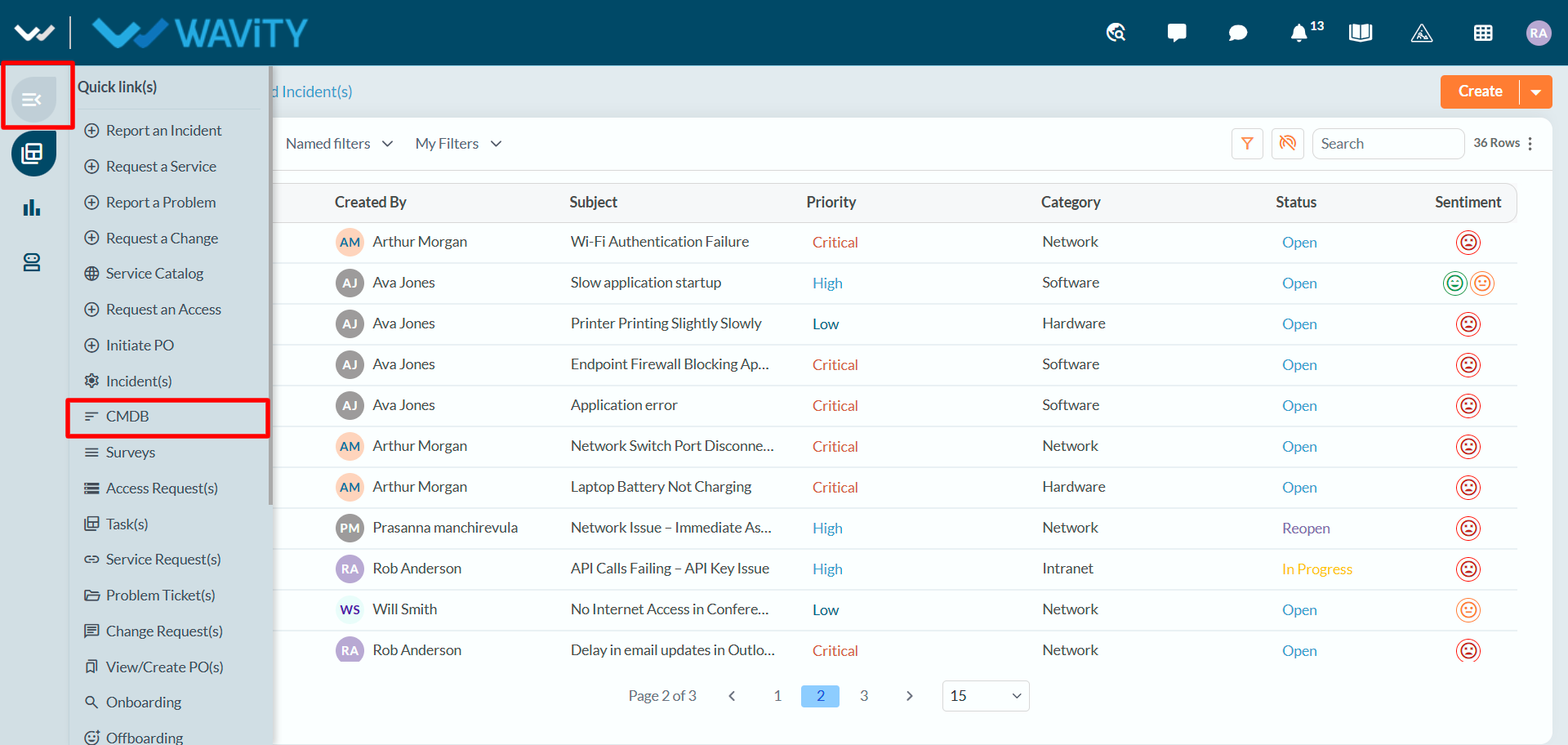
- Open the CMDB. Click the menu icon at the top of the left navigation bar to open Quick link(s), then click CMDB.
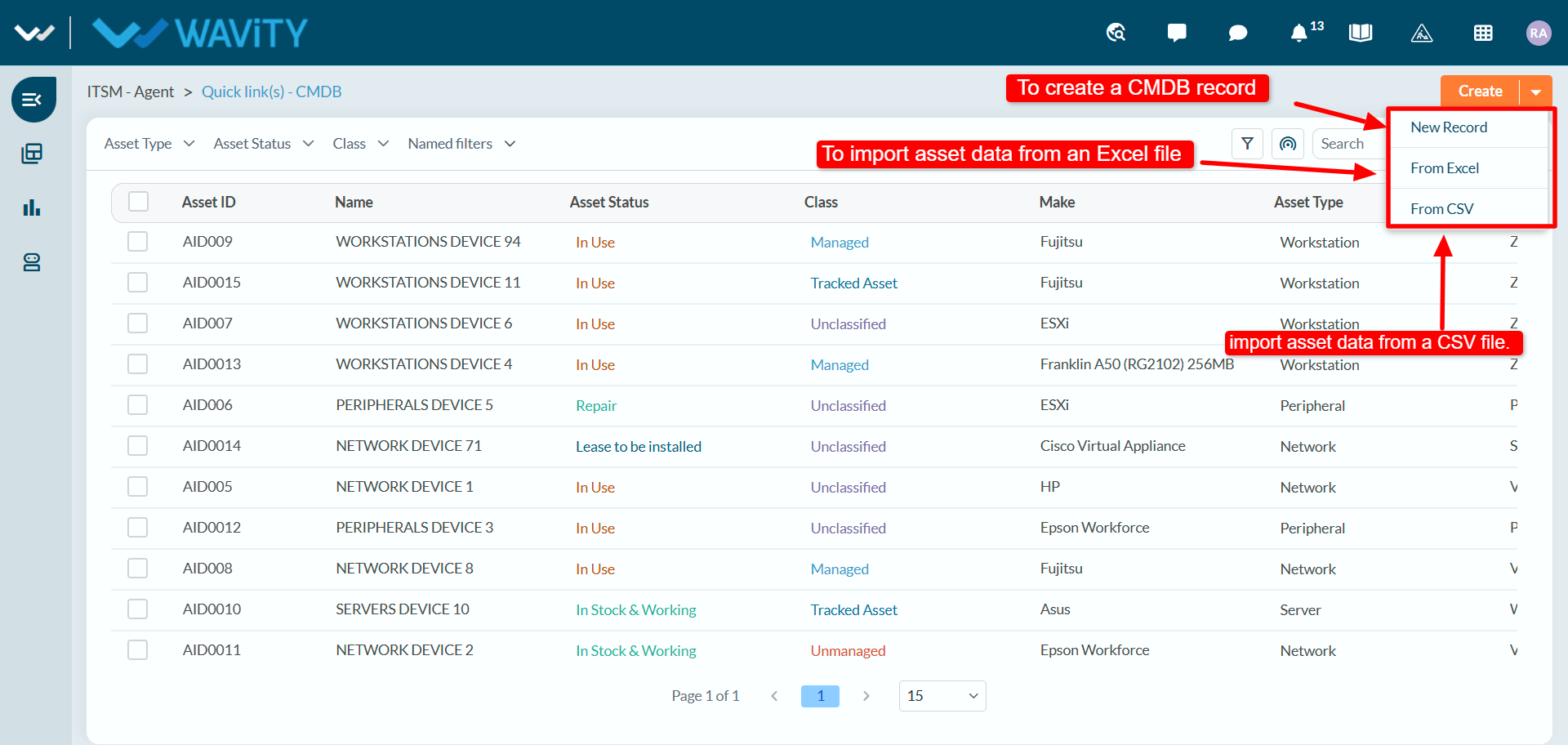
- Start a new record. On the CMDB list, click the arrow next to Create and select New Record.
Tip: To add many assets at once, choose From Excel or From CSV instead to import them in bulk.
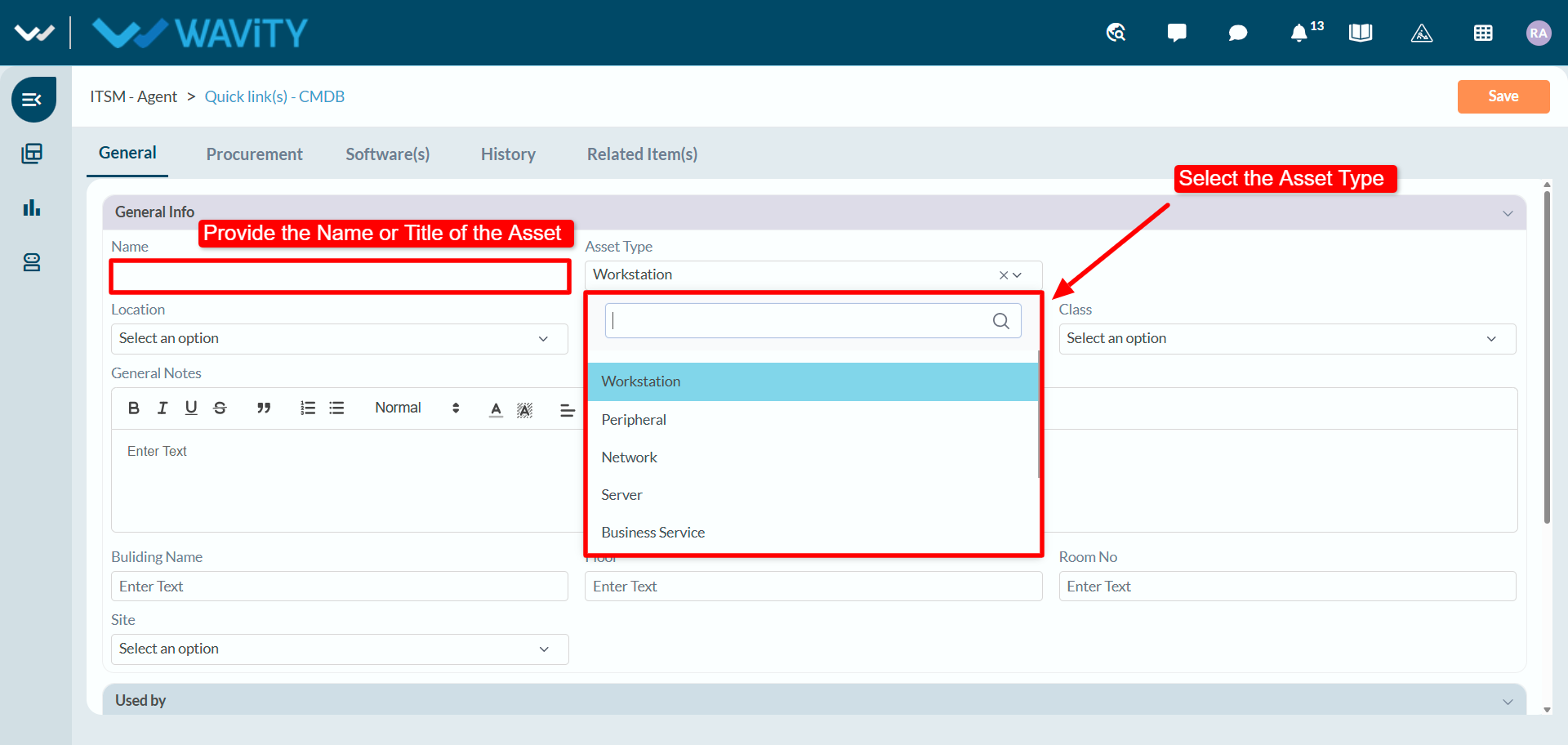
- Enter the name and asset type. On the General tab, under General Info, enter the asset’s name or title in Name, then choose an Asset Type (for example, Workstation, Peripheral, Network, Server or Business Service).
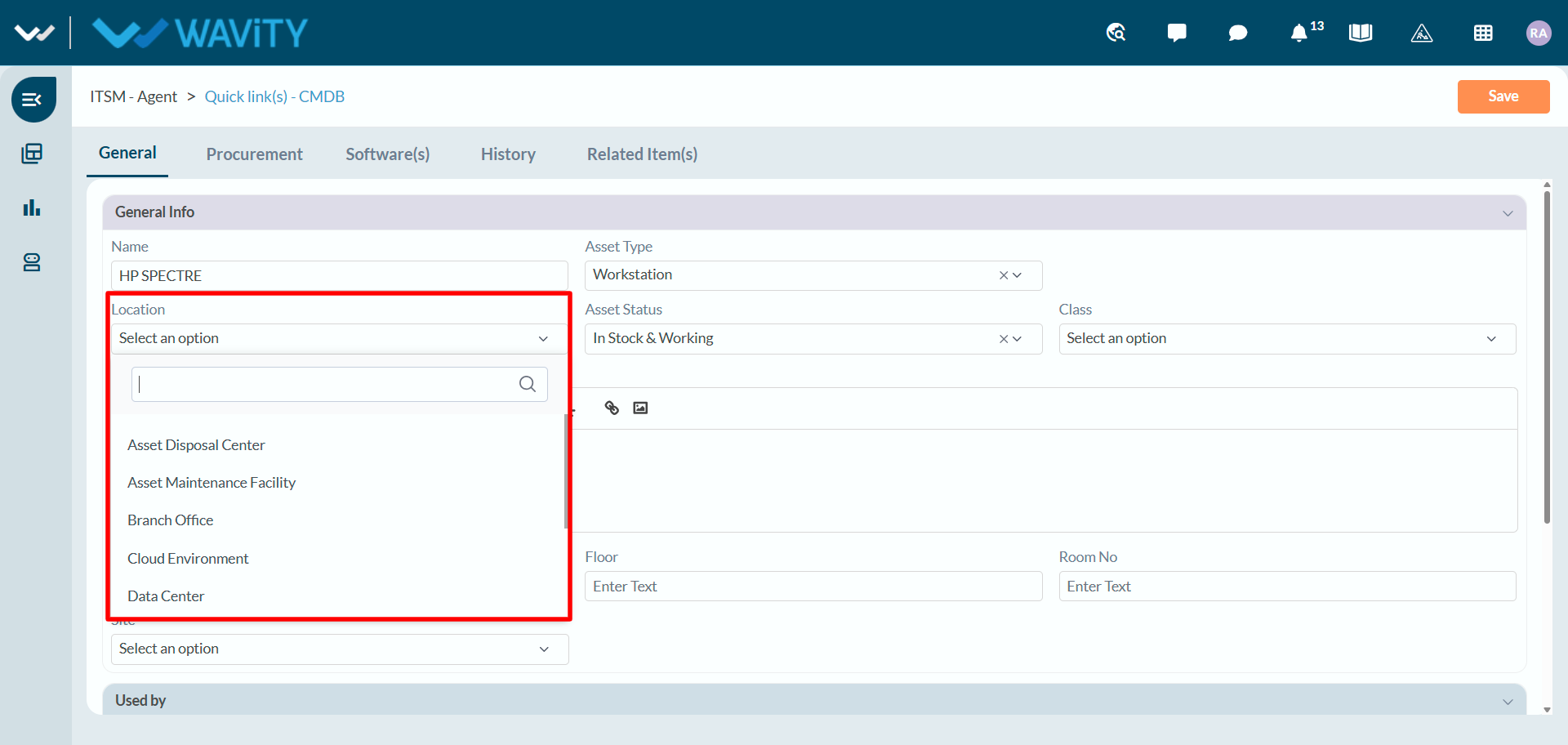
- Select the location. Choose where the asset is kept from the Location dropdown, for example Branch Office or Data Center. You can type in the search box to filter the list.
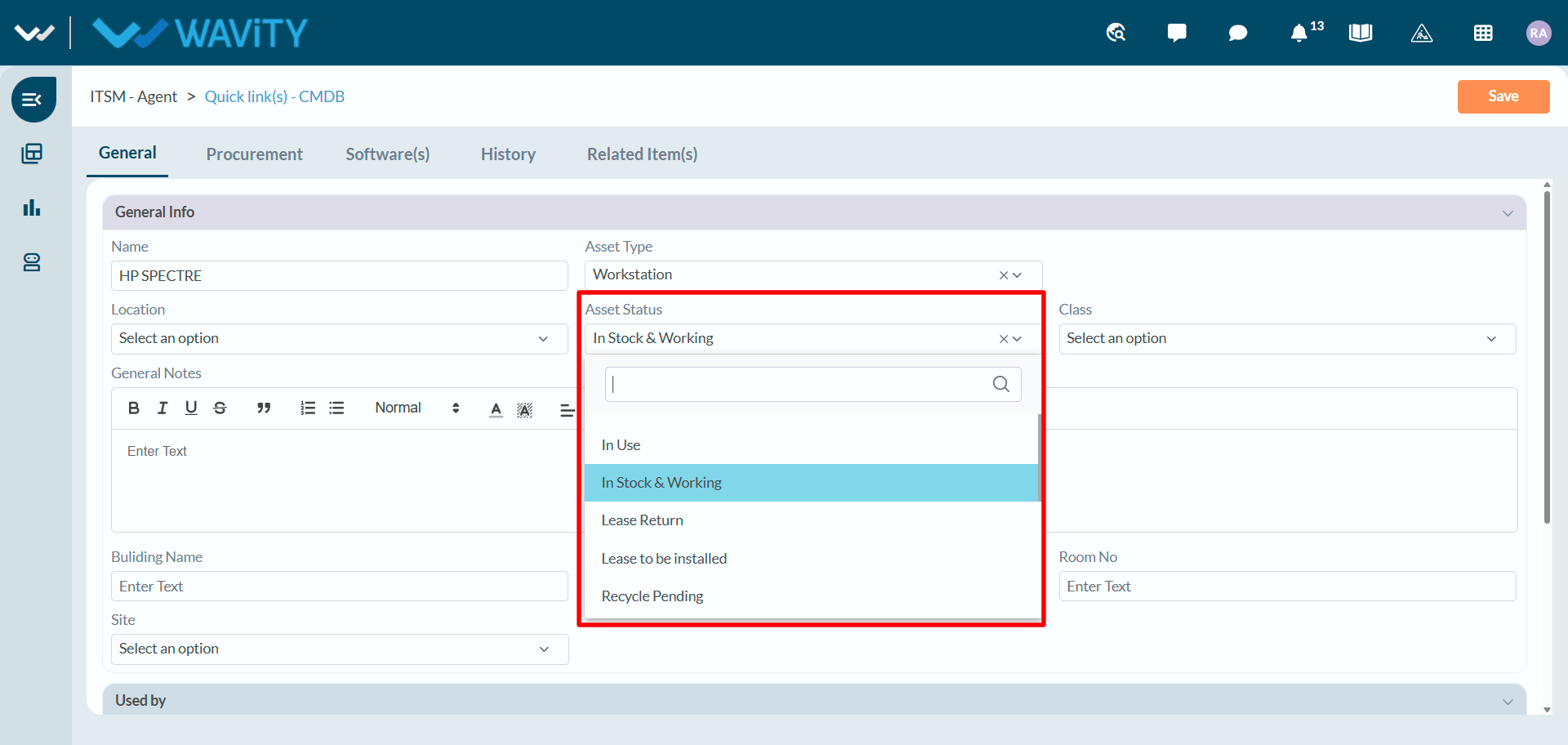
- Set the asset status. Choose the asset’s current state from the Asset Status dropdown, for example In Use, In Stock & Working, Lease Return, Lease to be installed or Recycle Pending.
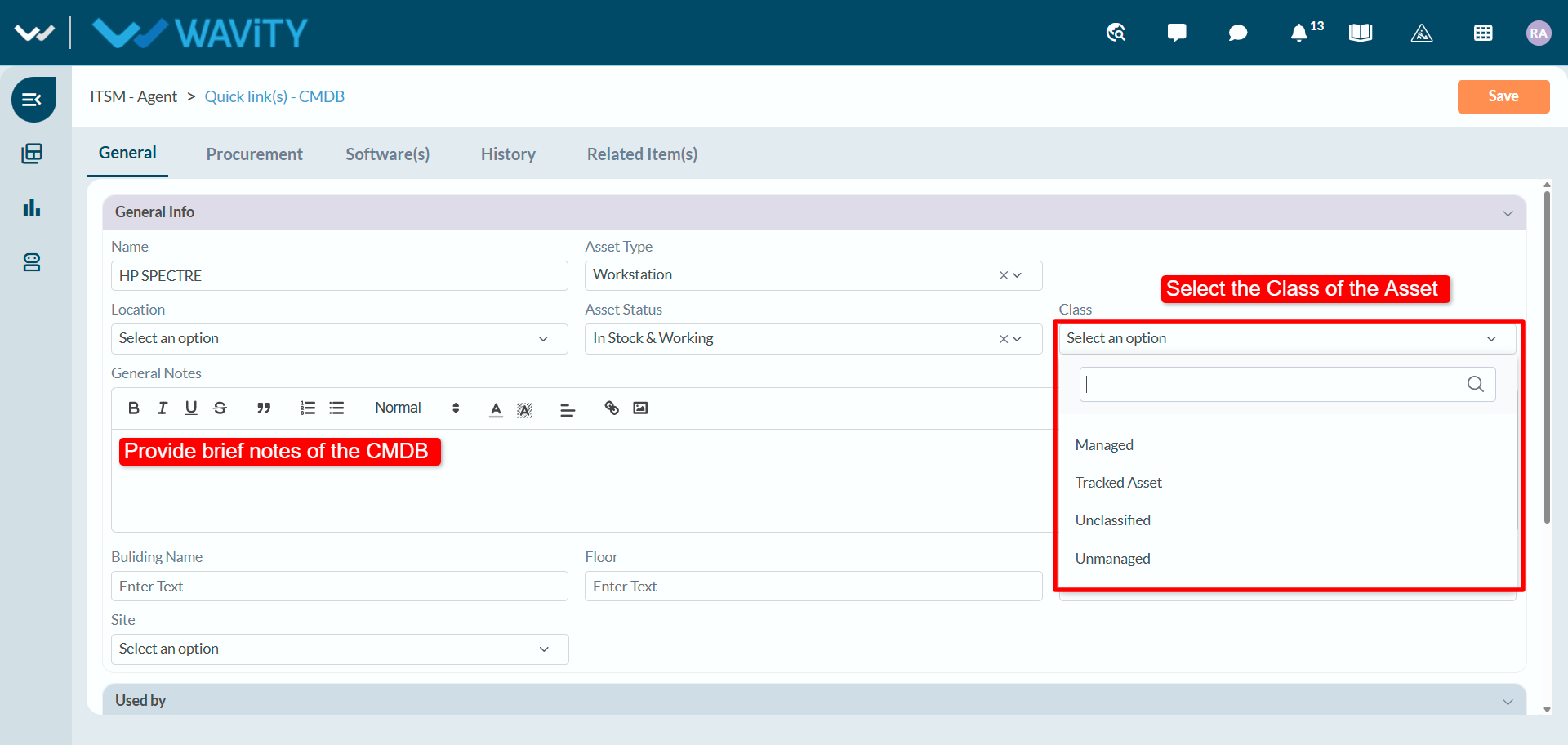
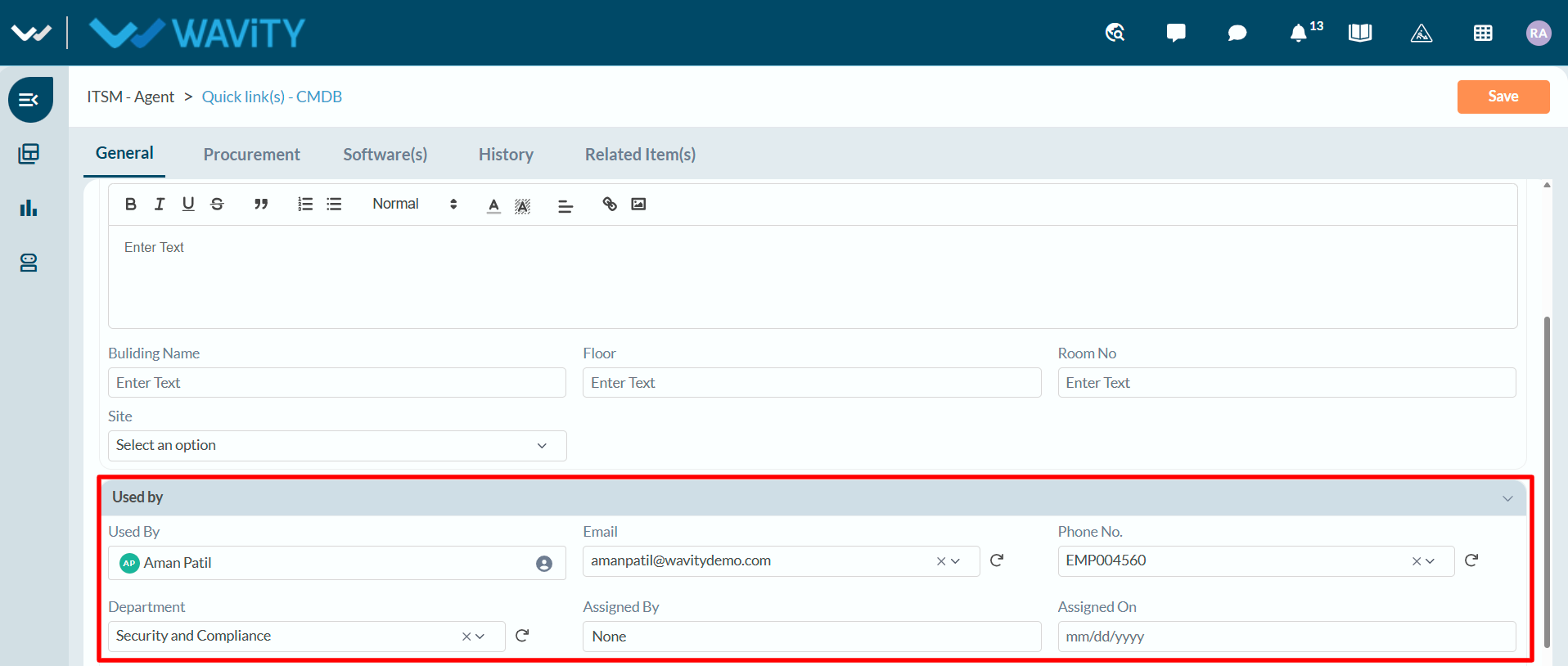
- Choose the class and add notes. Select a Class (Managed, Tracked Asset, Unclassified or Unmanaged). Use General Notes to add any relevant details about the asset. If needed, fill in Building Name, Floor, Room No and Site.
- Assign the asset to a user (optional). If the asset is used by someone, go to the Used by section and select the person in Used By. Their Email, Phone No. and Department fill in automatically. Complete Assigned By and Assigned On as needed.
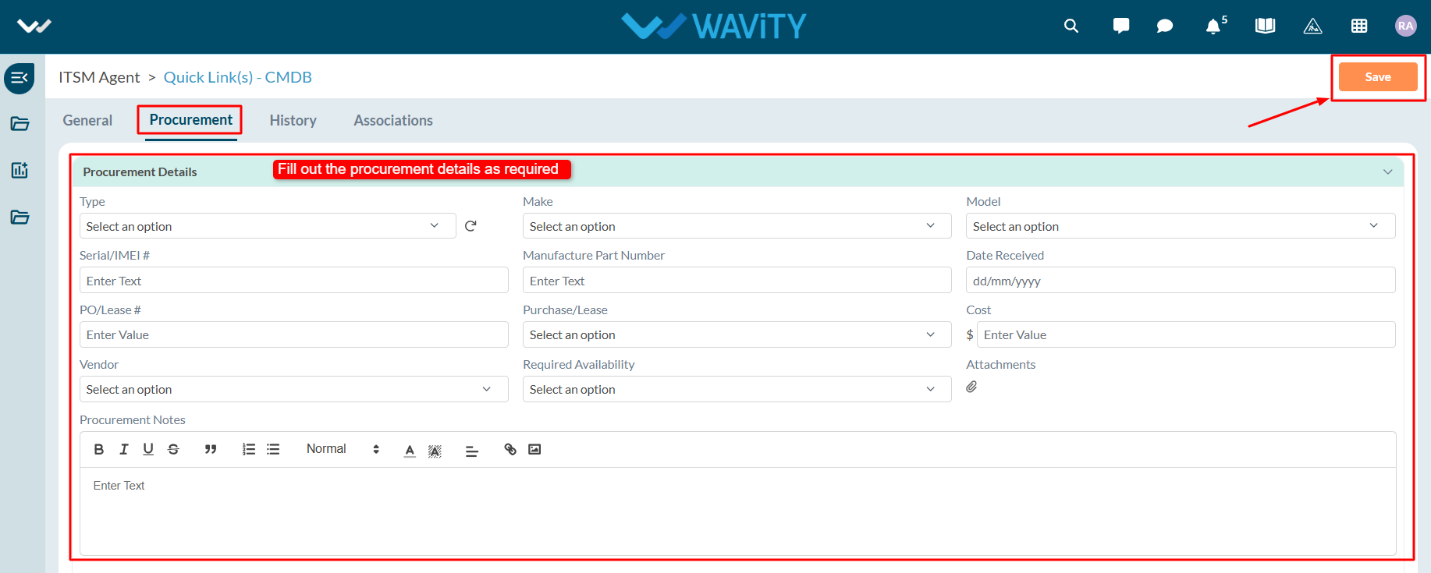
- Add procurement details. Open the Procurement tab and fill in the details you have, such as Type, Make, Model, Serial/IMEI #, Vendor, PO/Lease #, Purchase/Lease, Cost and Date Received. You can also attach files and add procurement notes.
- Save the record. When all required fields are complete, click Save in the top-right corner. The new record appears in the CMDB list.