Service Catalog: User Guide
Service Catalog: User Guide
Request a service
Overview
The Service Catalog in the self-service portal lists the services your organization offers, such as software, hardware and access requests. This guide shows you how to find a service, submit a request for it, and check on requests you have already made.
Before you begin
You need an account that can sign in to your organization’s self-service portal.
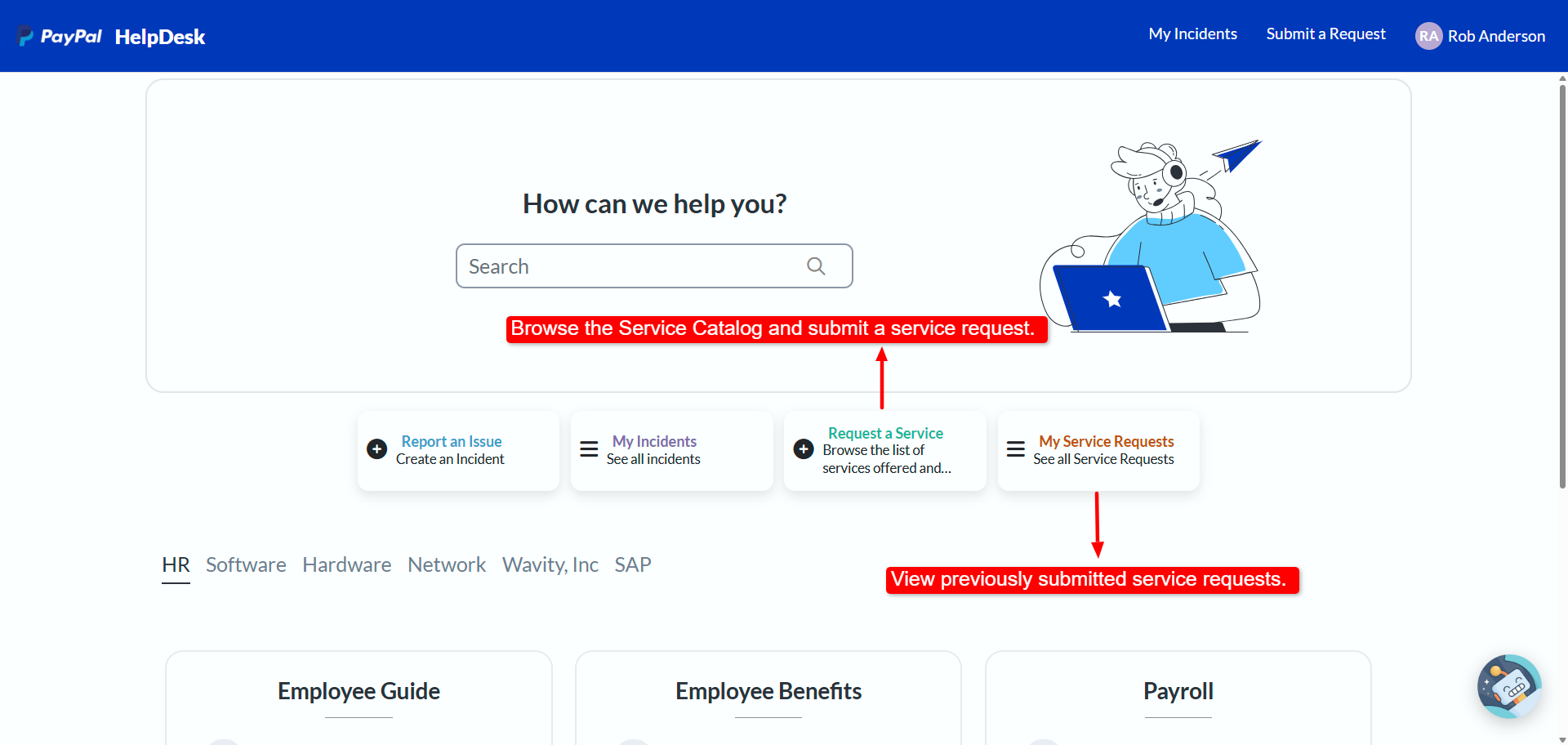
- Sign in to the portal. On the home page, click Request a Service.
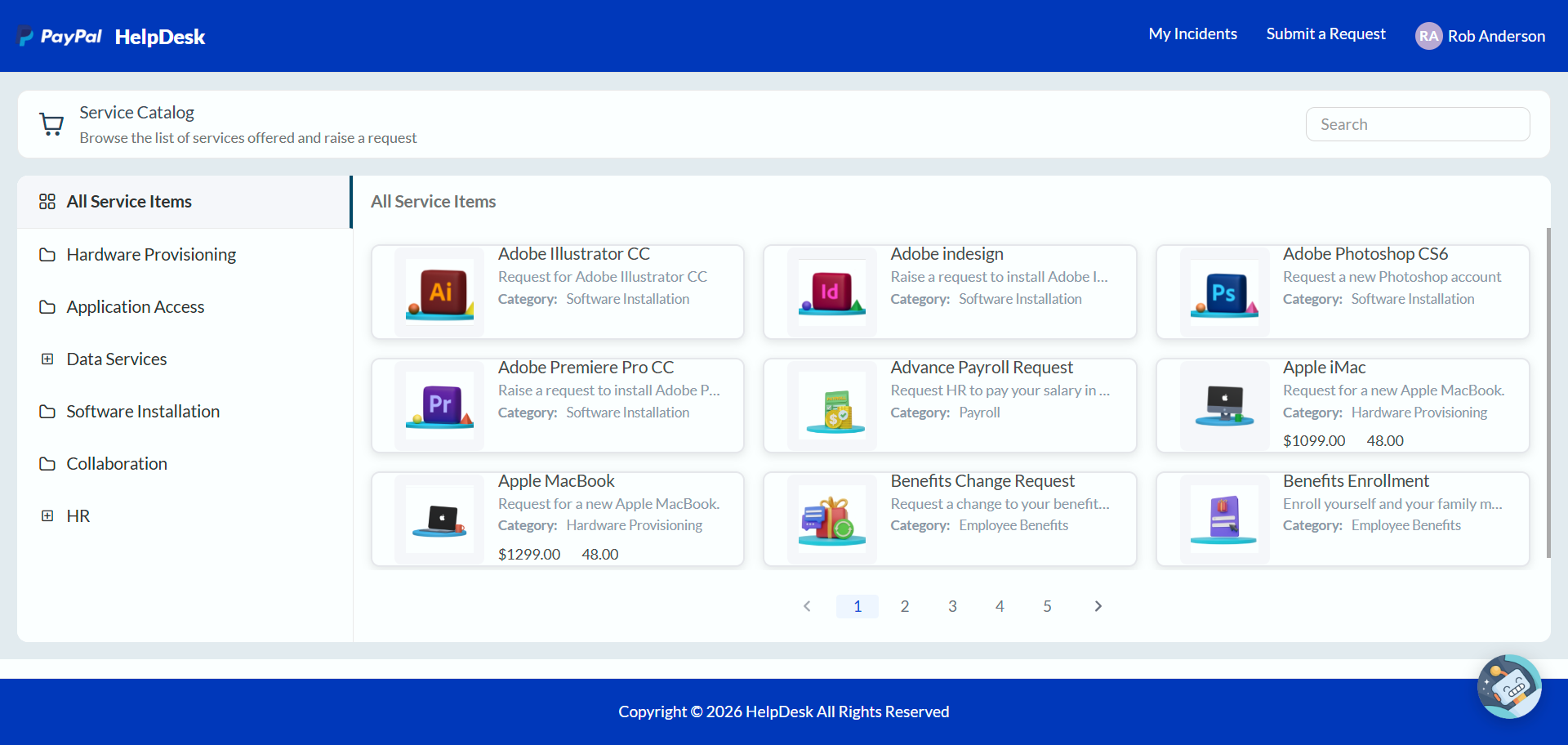
- Find the service you need. The Service Catalog lists all available services under All Service Items. Select a category on the left to narrow the list, or type in the Search box to find a specific service. Click a service to open it.
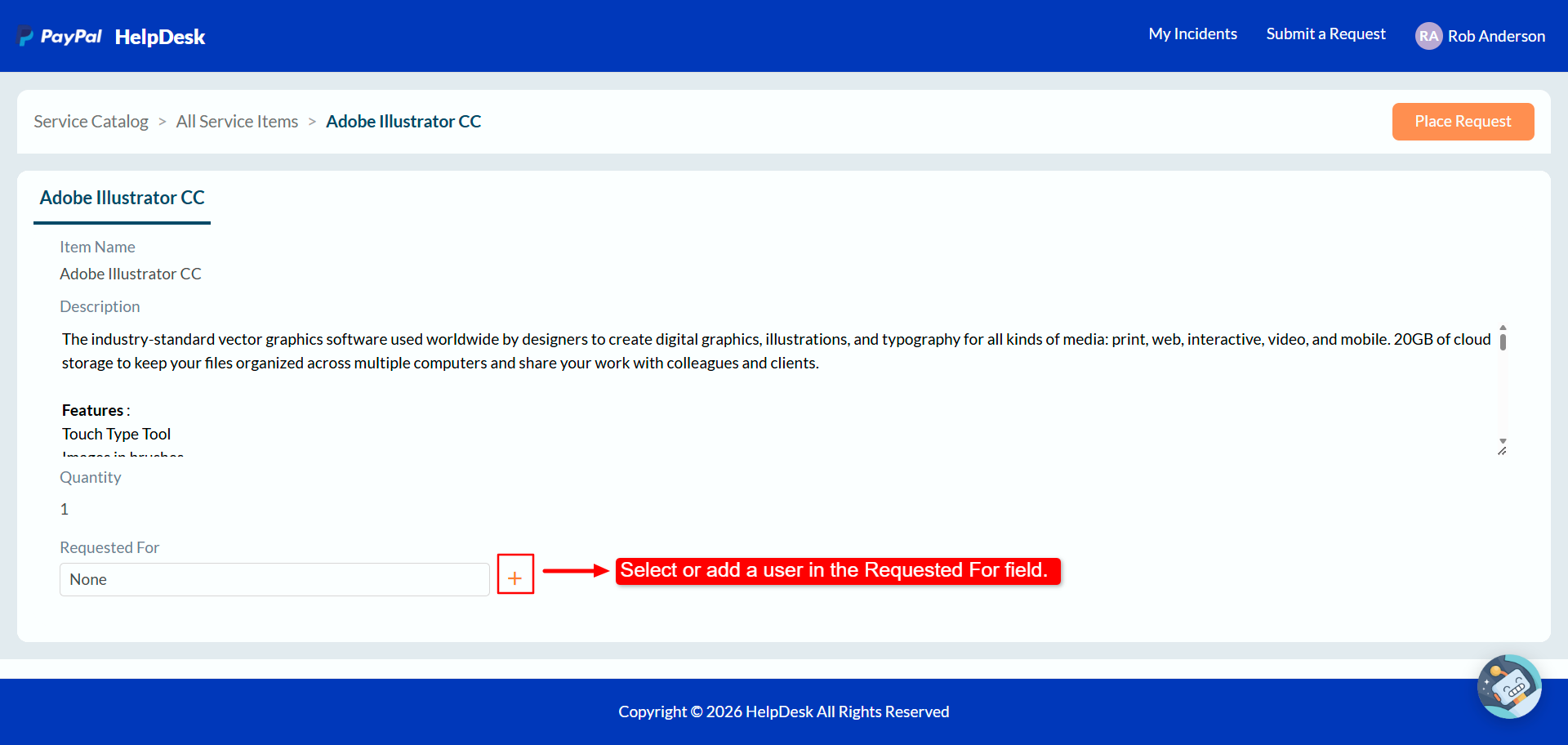
- Review the details. Check the service’s Item Name, Description and Quantity. In Requested For, click the + icon to select the person the request is for.
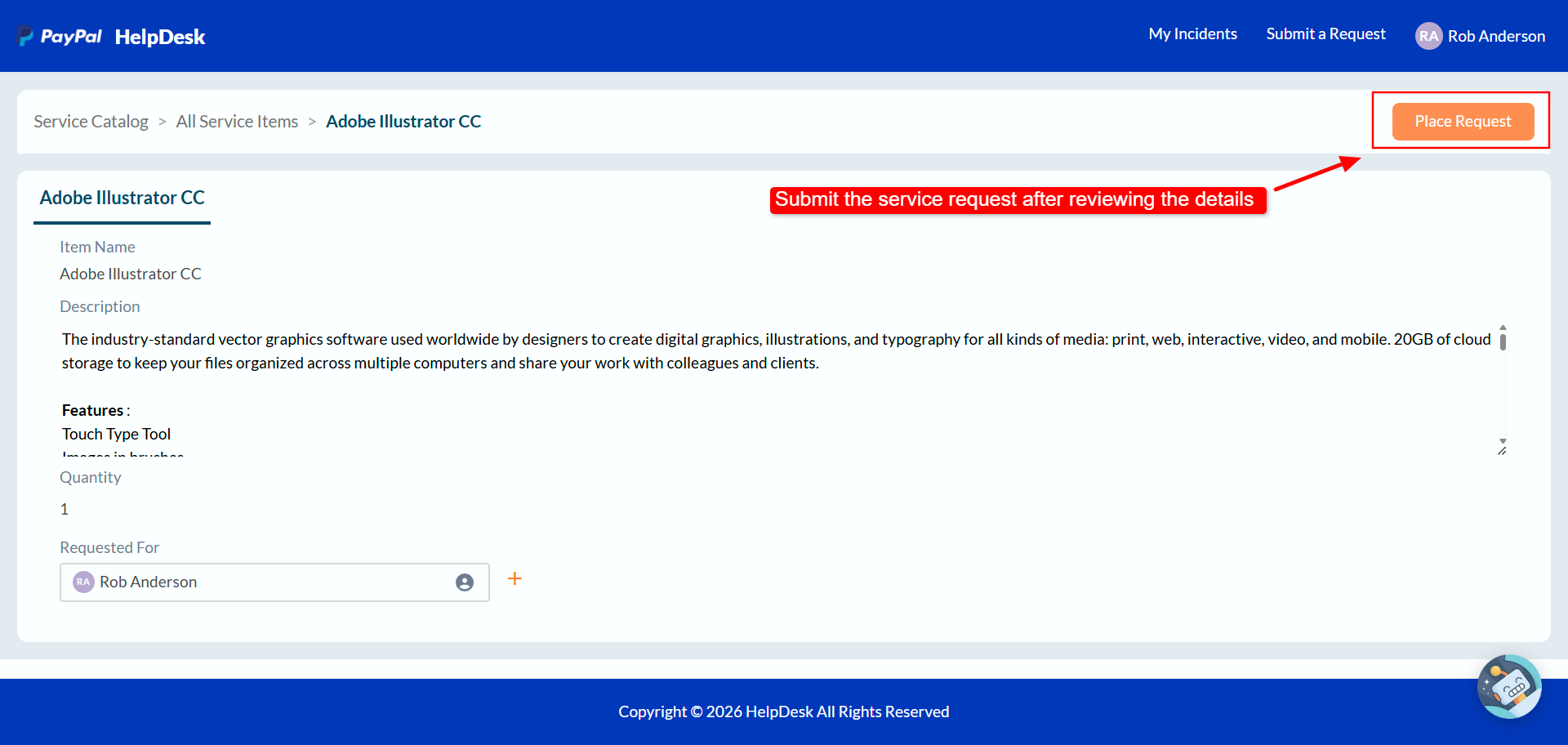
- Submit the request. When the details are correct, click Place Request in the top-right corner.
View your requests
To check the status of requests you have already submitted, click My Service Requests on the portal home page.