Side Conversations: Admin Guide
Side Conversations: Admin Guide
Admin Guide · Wavity ITSM
Overview
Side conversations let agents loop in a third party, such as a vendor or another team, from inside an incident without exposing that conversation to the customer. Agents can start a side conversation by email or Slack. This guide shows administrators how to turn the feature on for an application, choose who can use it, and confirm that it works from an incident.
Note: These steps describe the standard workflow. Your organization may have customized the applications, settings or layout, but the core process stays the same.
Enable side conversations
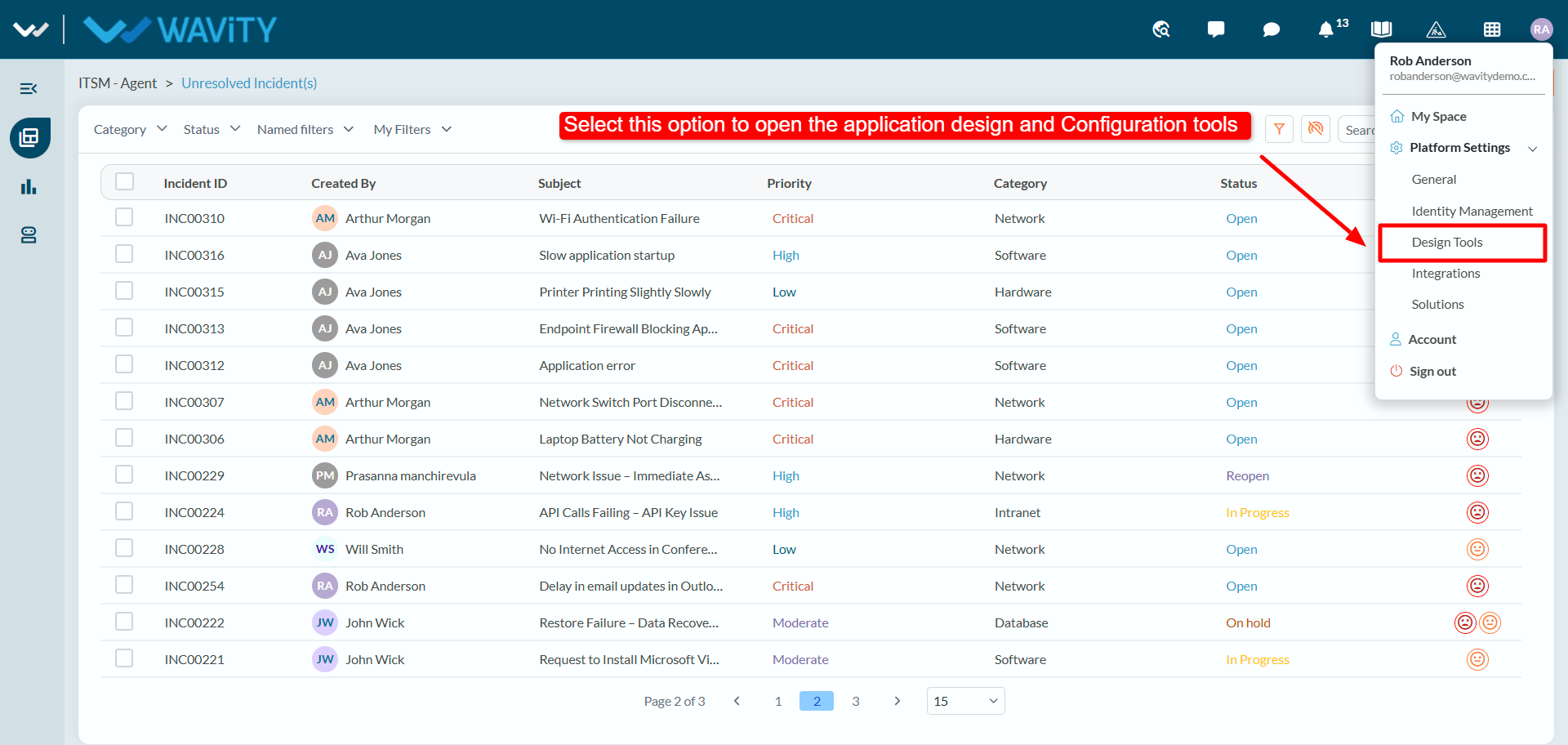
- Open Design Tools. After you sign in, click your profile picture in the top-right corner, expand Platform Settings and select Design Tools.
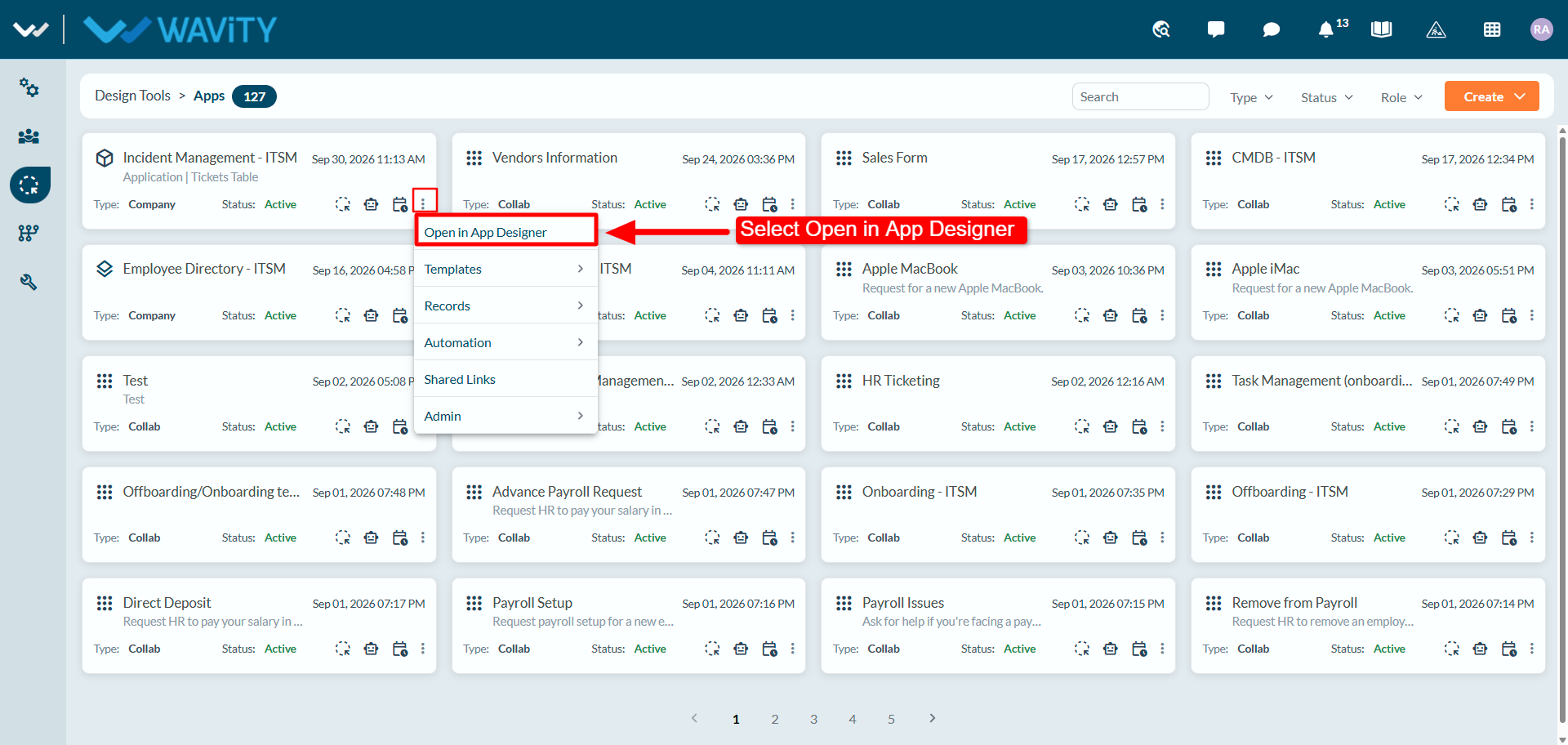
- Open the application in App Designer. On the Apps page, find the application you want to configure, such as Incident Management - ITSM. Click its More options icon (three vertical dots) and select Open in App Designer.
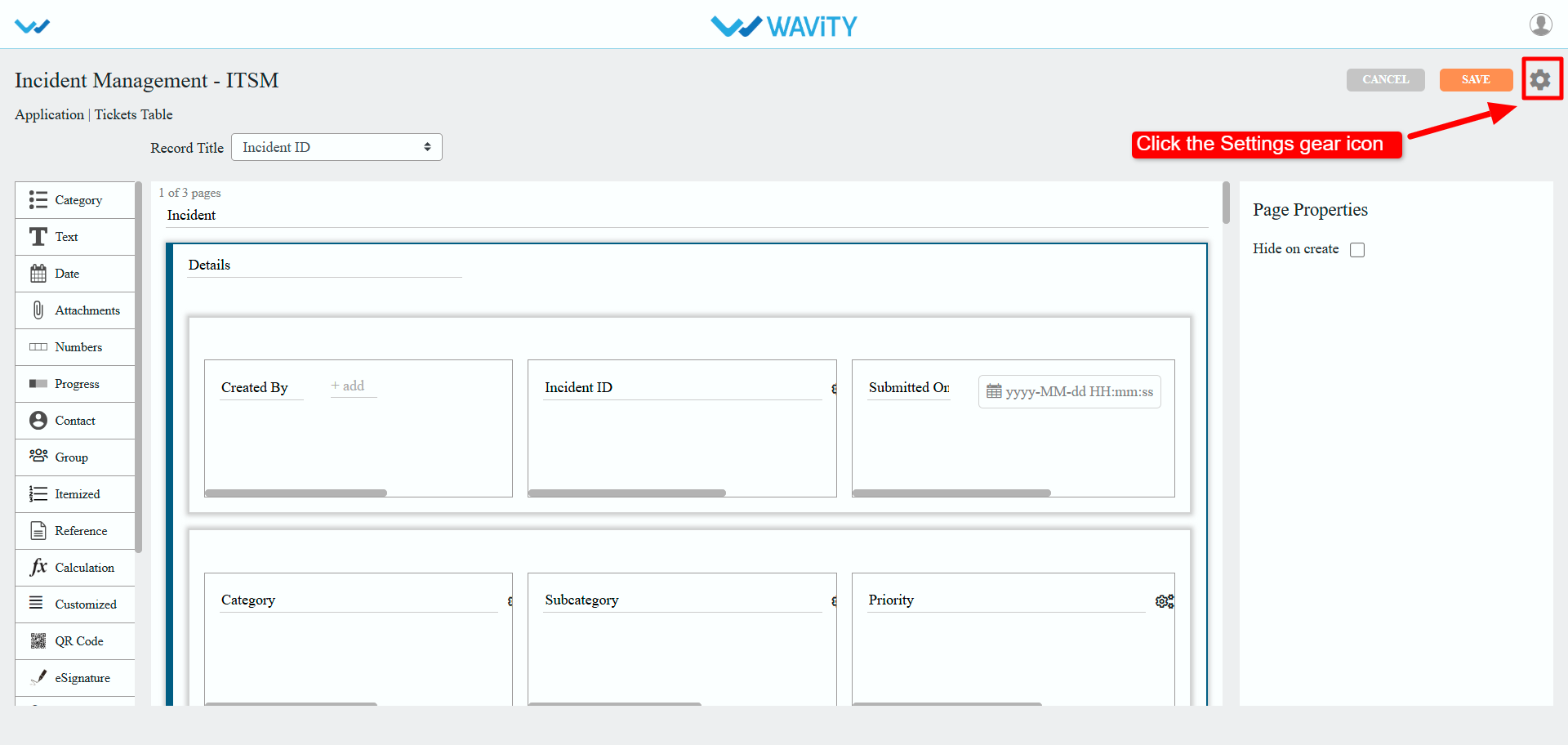
- Open the application settings. In App Designer, click the Settings gear icon in the top-right corner.
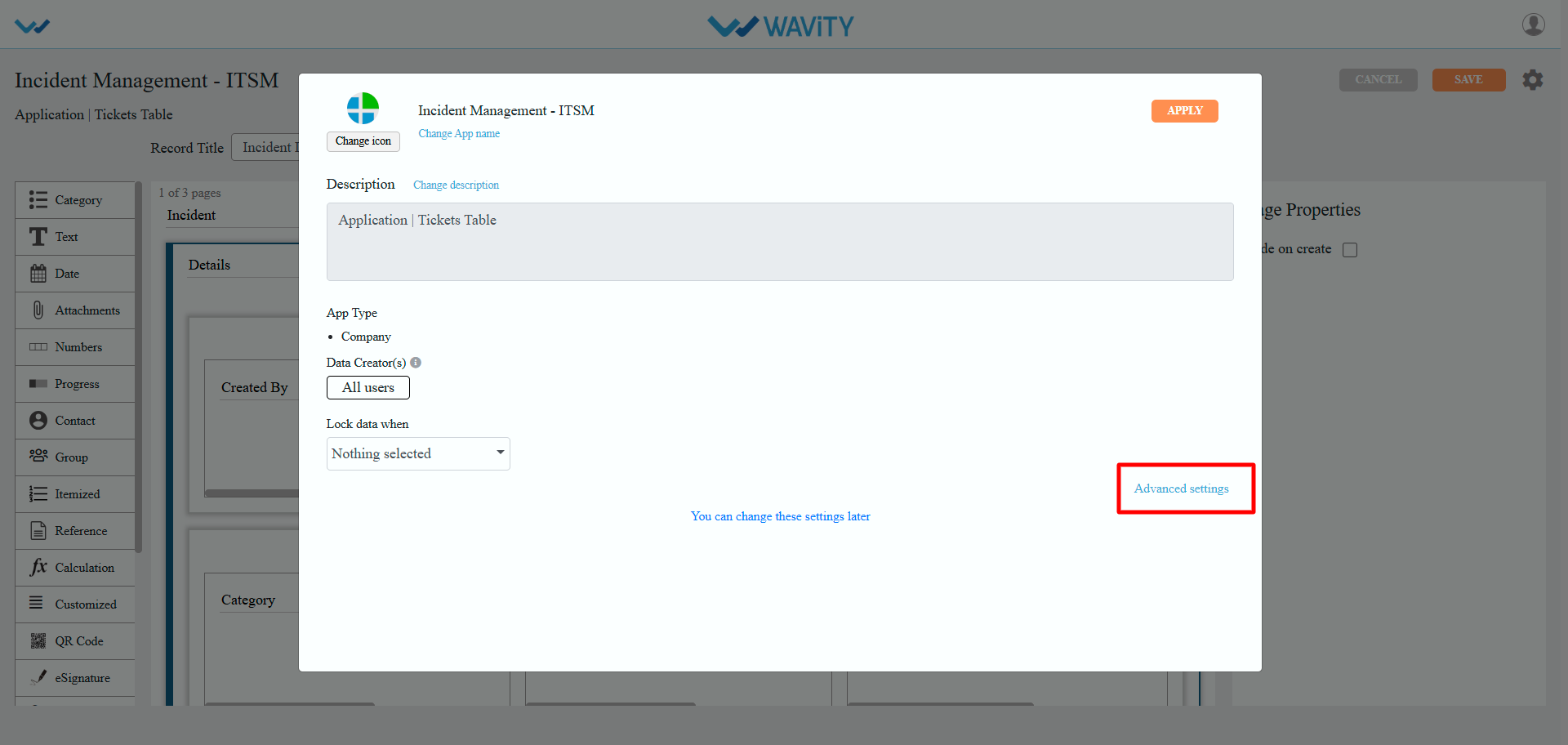
- Open Advanced settings. In the application settings window, click Advanced settings.
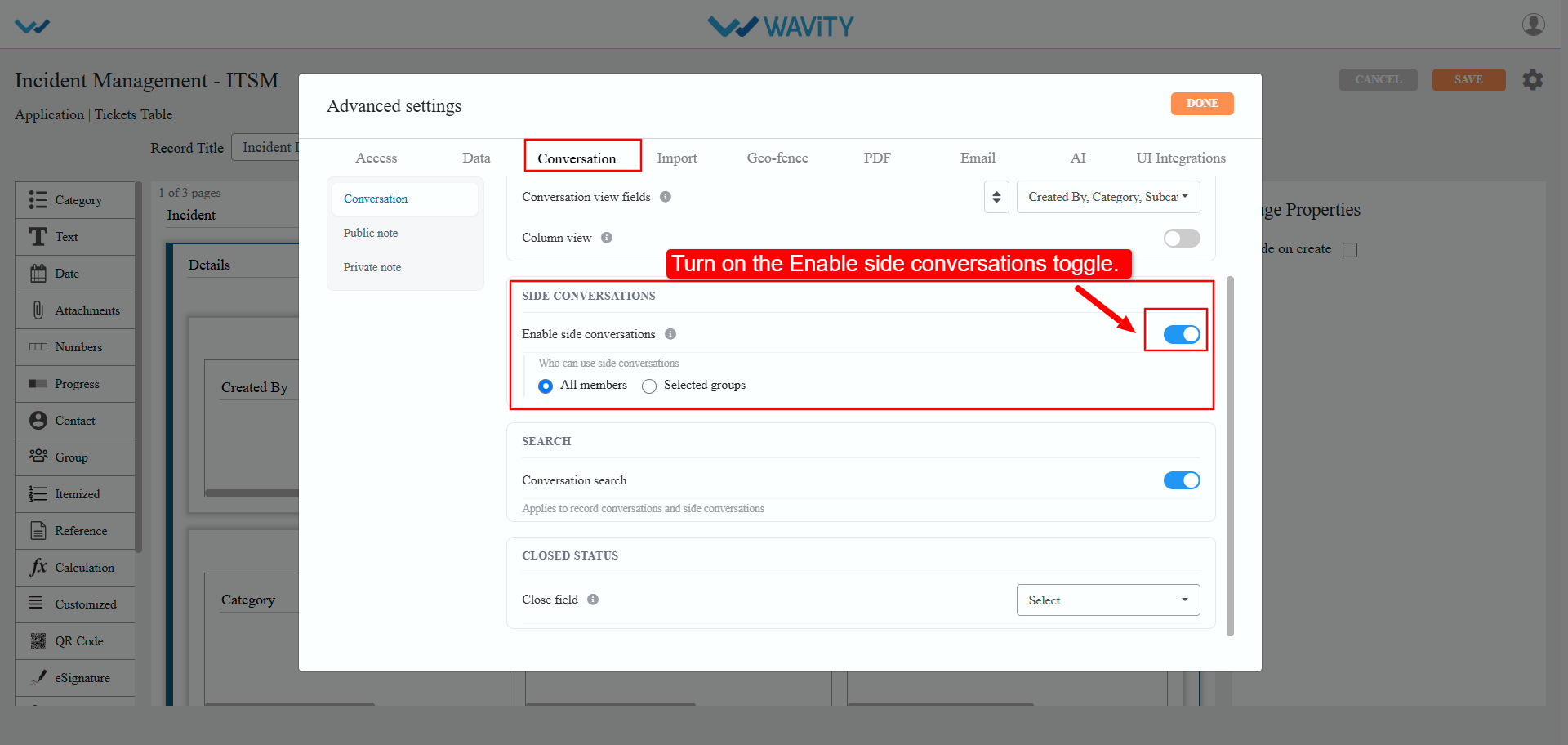
- Turn on side conversations. Select the Conversation tab, then Conversation in the left-side menu. Under Side Conversations, turn on Enable side conversations.
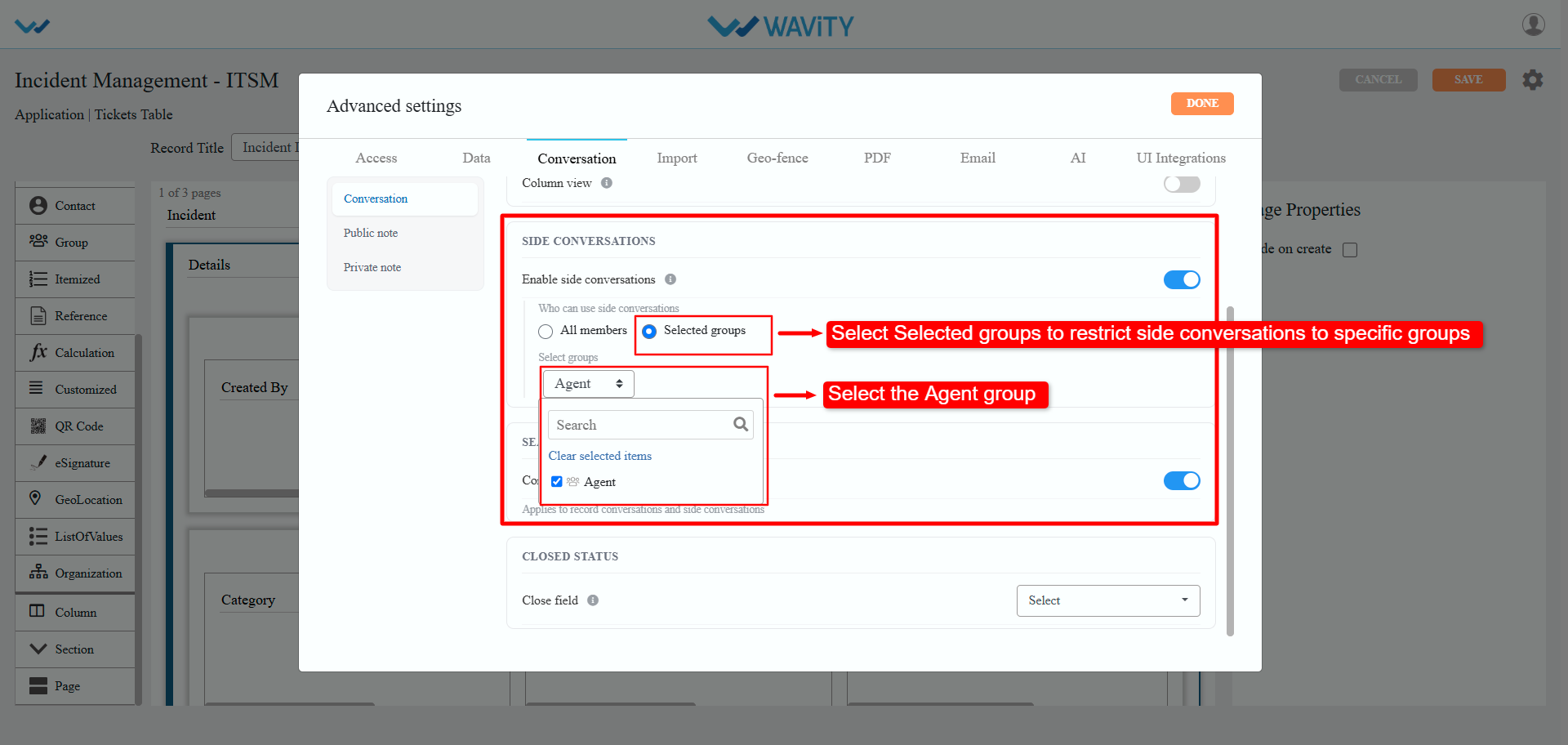
- Choose who can use side conversations. Under Who can use side conversations, select All members, or select Selected groups to limit access to specific teams. If you choose Selected groups, pick the groups you want, such as Agent, from the Select groups list.
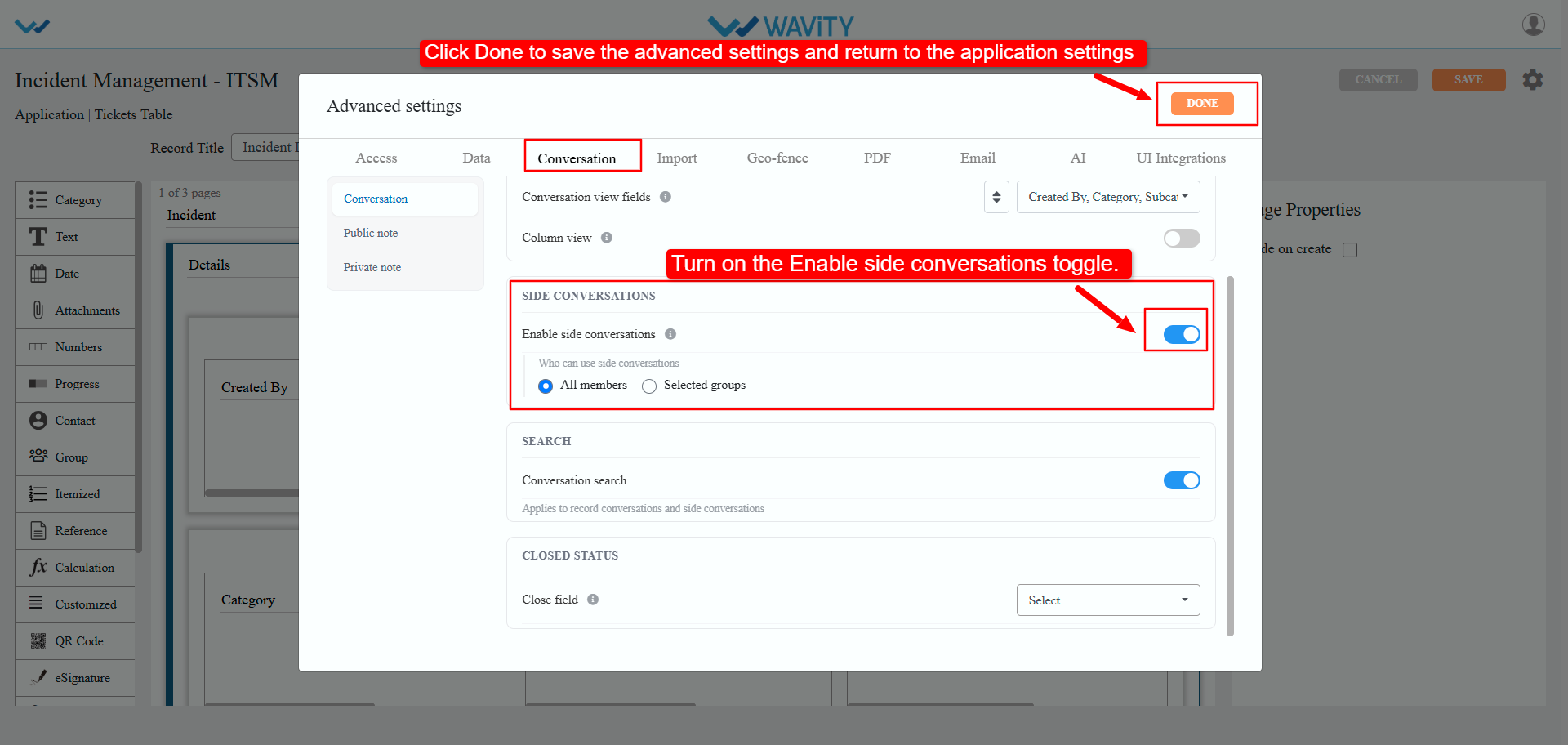
- Close Advanced settings. Click Done to keep your changes and return to the application settings window, then click Apply.
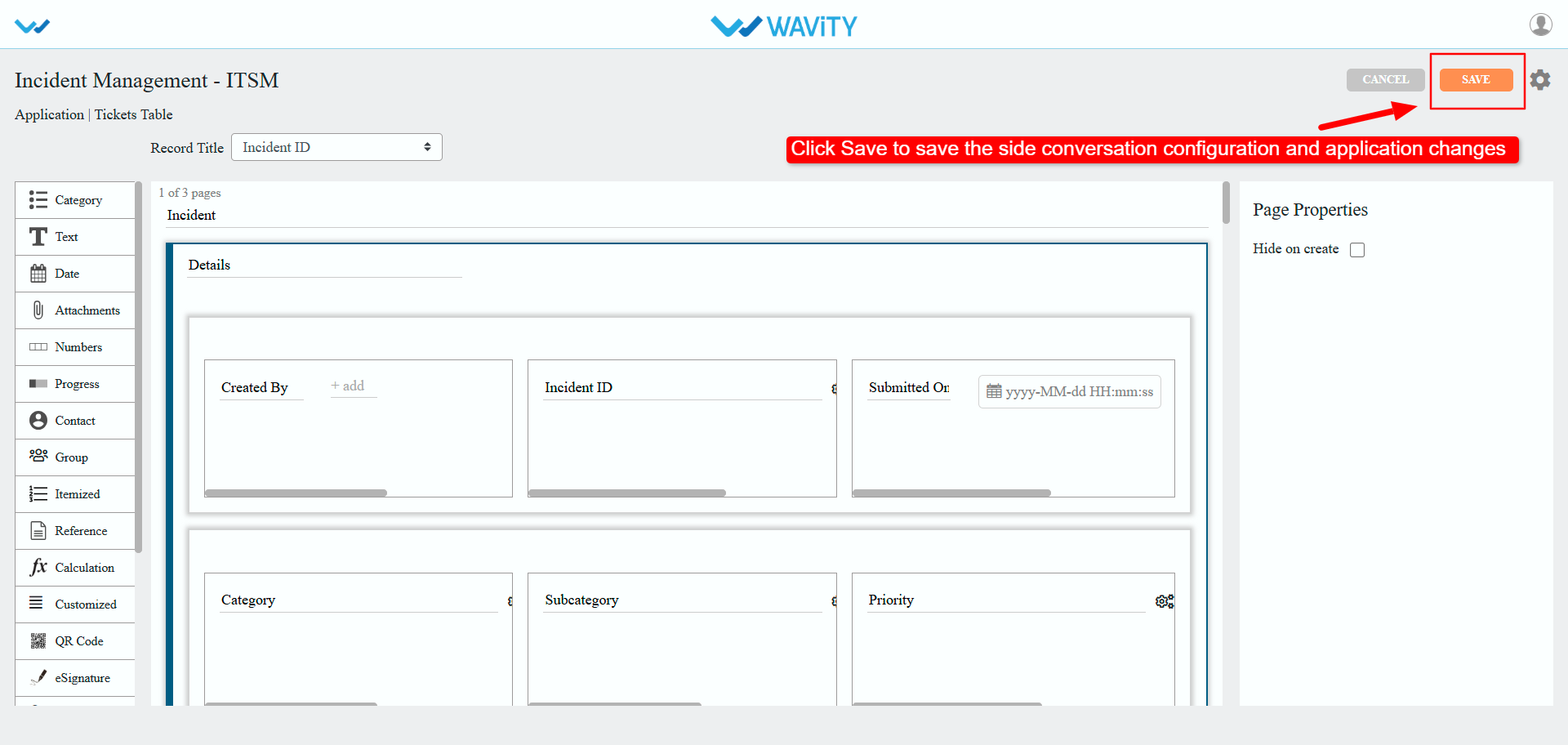
- Save the application. In App Designer, click Save in the top-right corner to save the side conversation settings.
Start a side conversation from an incident
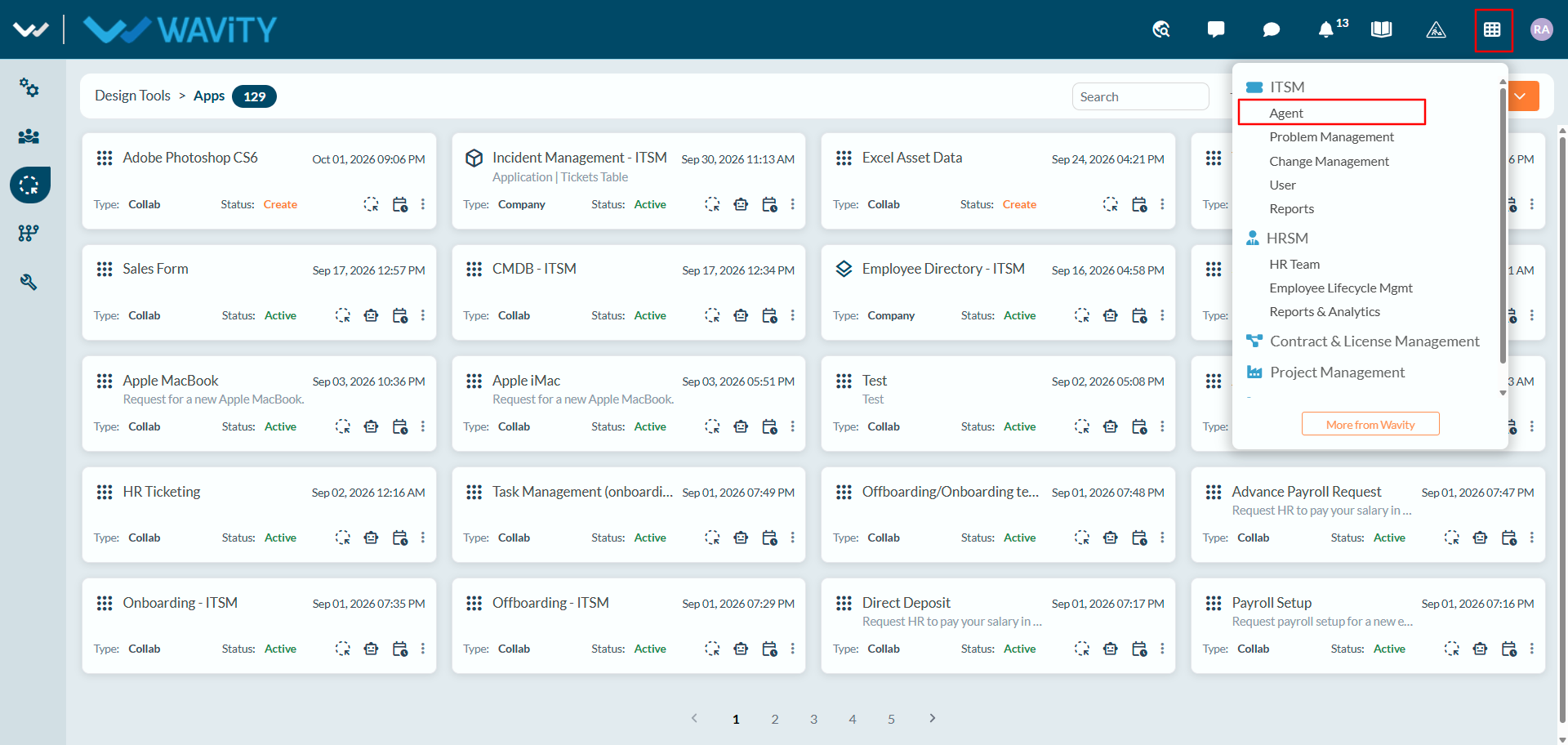
- Open the Agent workspace. Click the Solutions icon (the grid) in the top navigation bar. Under ITSM, select Agent.
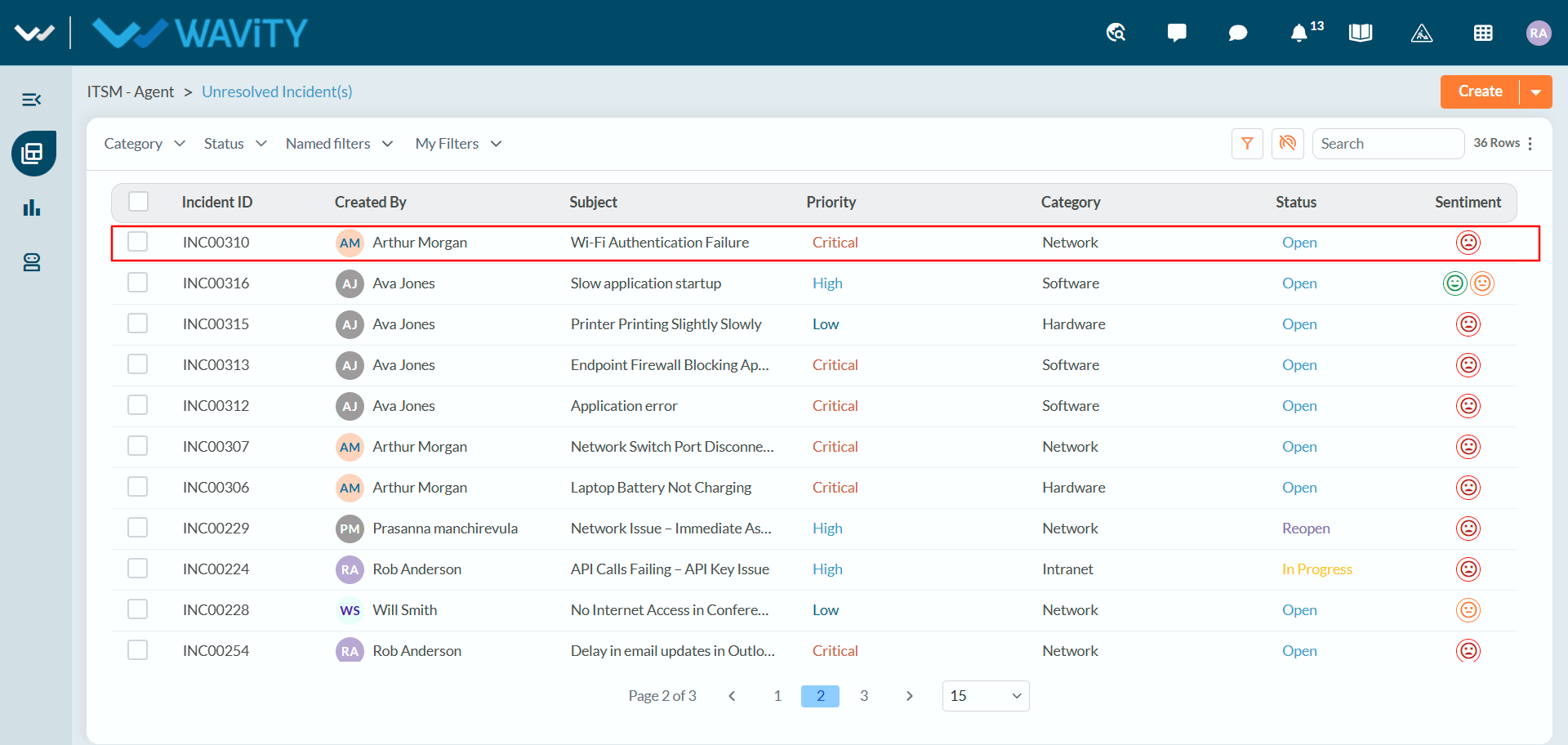
- Open an incident. The ITSM - Agent page opens with the list of unresolved incidents. Click the incident you want to work on.
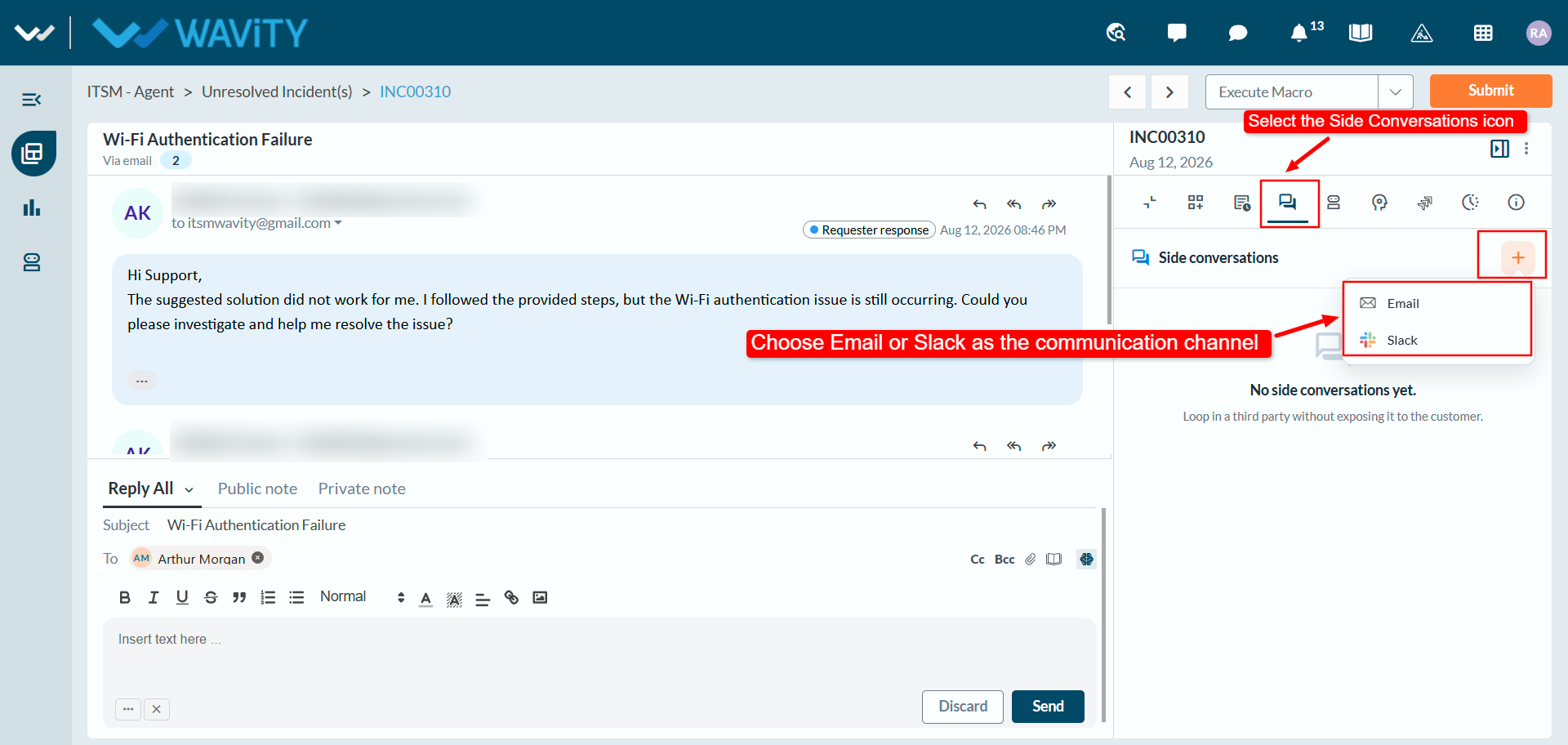
- Start a new side conversation. In the panel on the right of the incident, click the Side Conversations icon. Click the + icon, then choose Email or Slack.
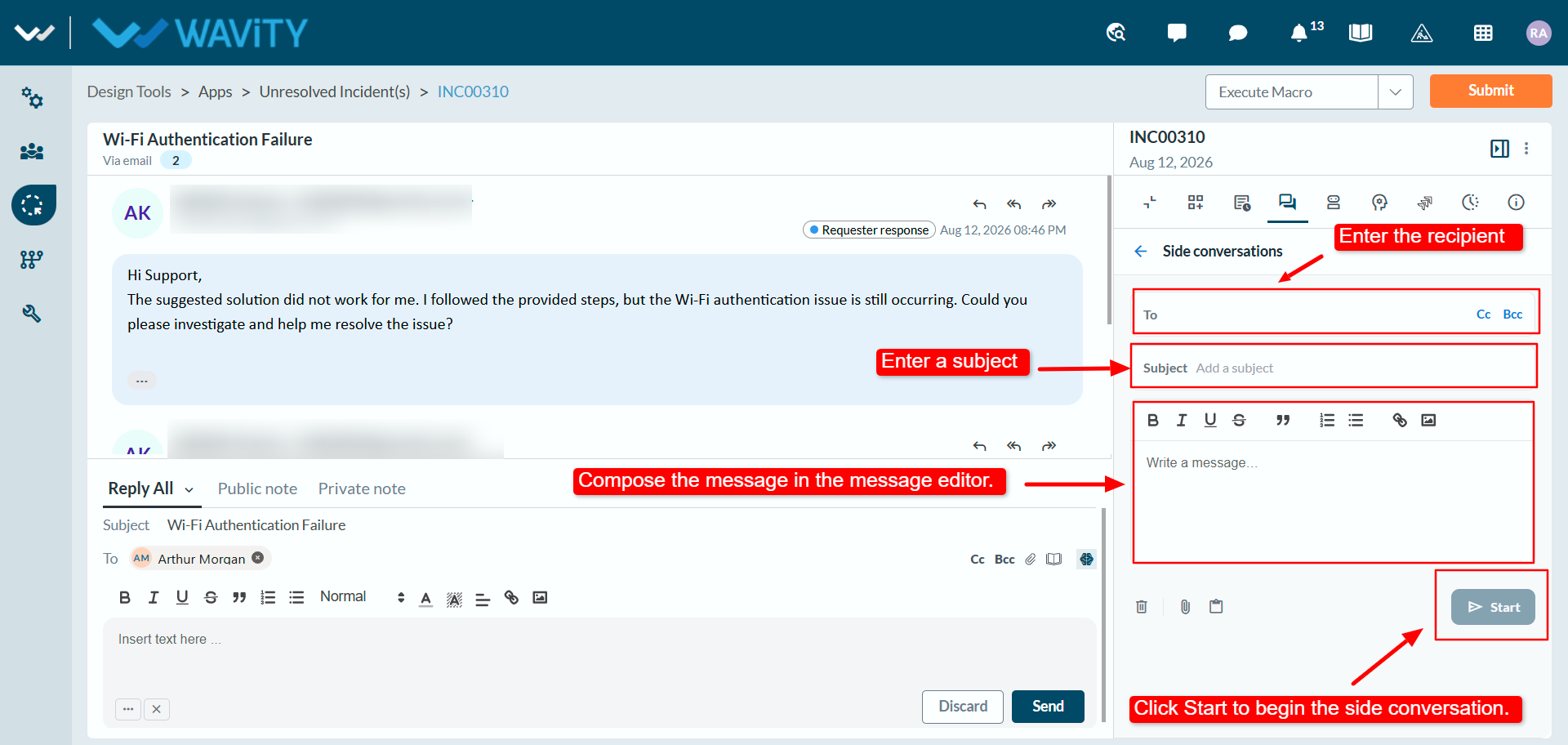
- Write and send the message. Enter the recipient in To and add Cc or Bcc recipients if needed. Add a Subject, write your message, then click Start to begin the side conversation.